
Apple pushed an OS X update today with build number “10.12 (16A323)”. The installation alone (excluding download time) took at least 29 minutes, giving me just enough time to enjoy an afternoon coffee break.
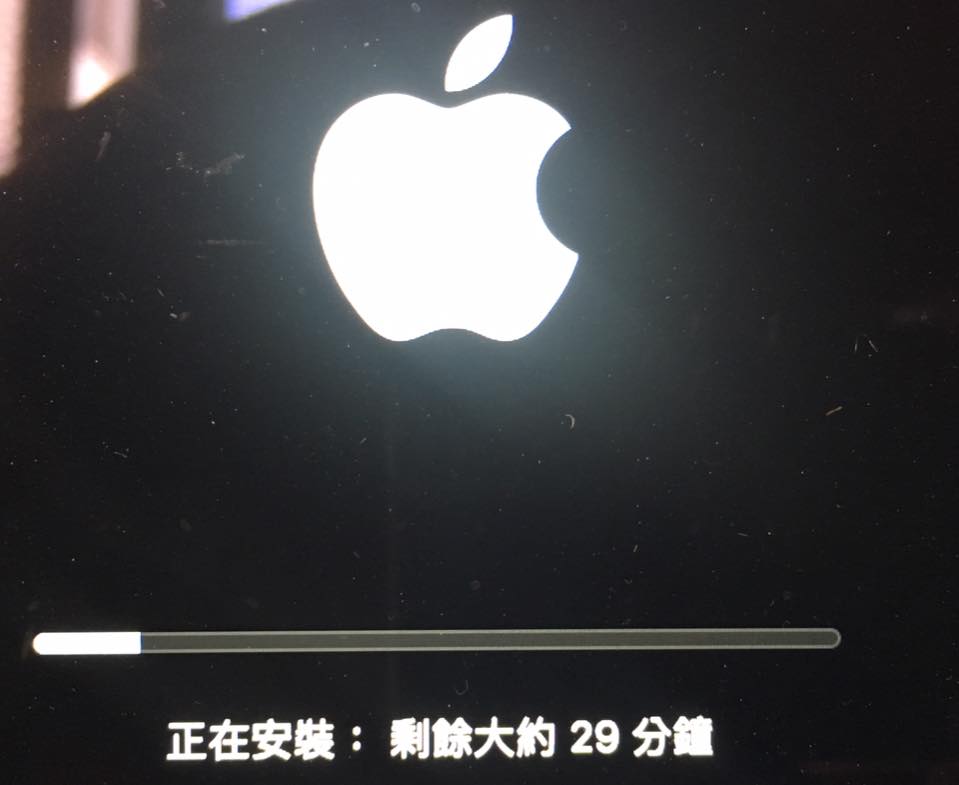 A surprisingly time-consuming Apple system update.
This update introduces a marquee feature: the (rather superfluous) desktop version of the “Siri” voice assistant, alongside noticeable changes to iCloud cloud storage management (which quickly runs out of space, nudging you to pay for upgrades).
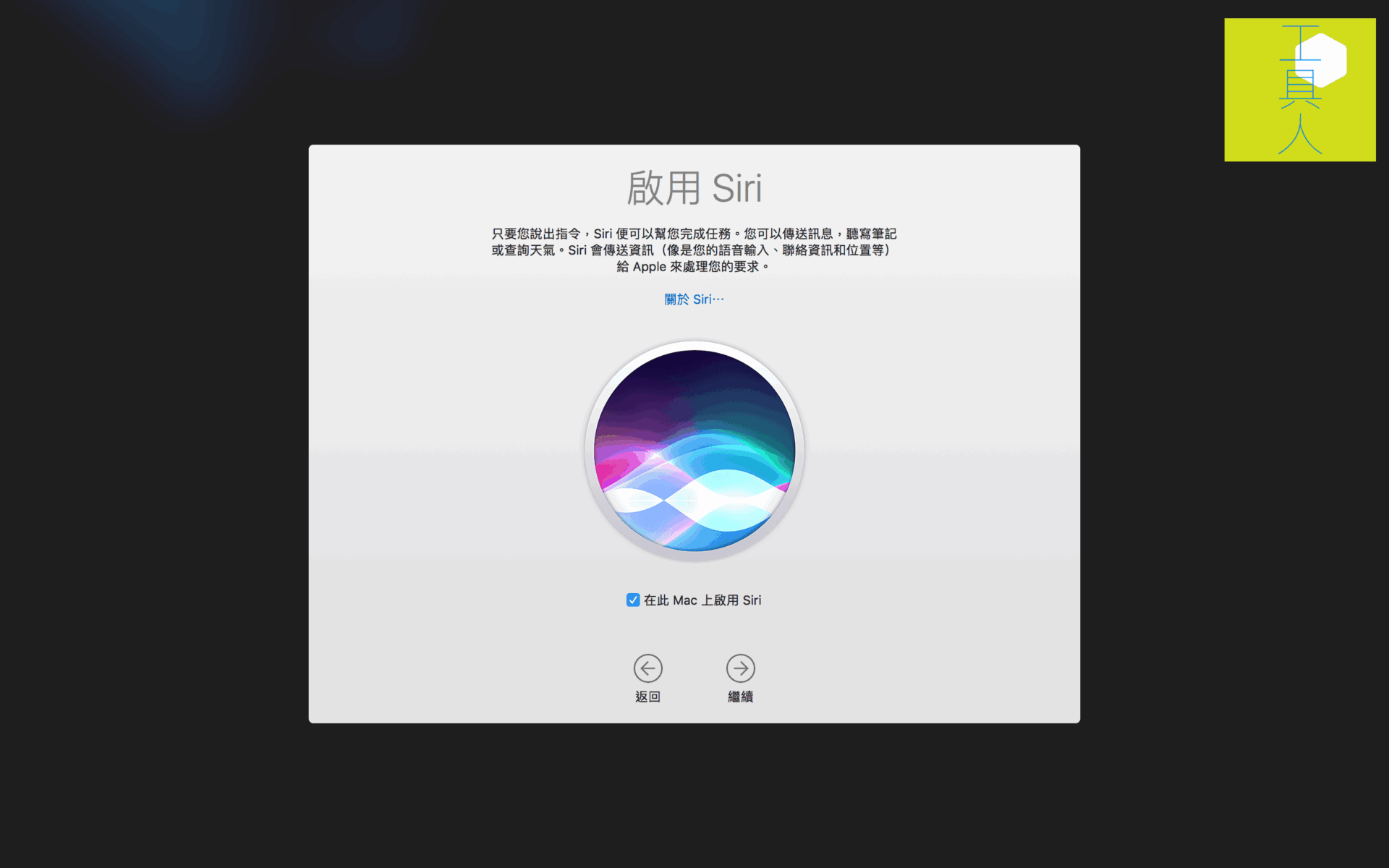 Enabling Siri.
Once the desktop Siri voice control feature is enabled, you can summon it directly by clicking the Siri icon in the Dock or Launchpad.
 A beautifully designed Siri logo.
Next, Siri’s signature voice waveform pops up in the top-right corner of the screen to indicate speech recognition status. This small floating window also serves to display query results and provide a microphone button for follow-up prompts.
 Siri’s sleek voice waveform interface.
After testing the desktop edition of Siri voice control, I found that an already rarely used feature on mobile feels even more redundant on a computer (iMac, MacBook).
Siri makes sense on a phone primarily because typing and navigation on a touchscreen can be cumbersome. But on a desktop or laptop, the fastest way to get things done remains using a keyboard and mouse (or trackpad). Trust me, physical typing is substantially faster than waiting for voice recognition and syntax interpretation.
 Siri being as verbose as ever.
Since invoking Siri turned out to be slower than manual navigation, I disabled the feature after playing around with it for a bit.
If you also wish to turn off Siri, simply open “System Preferences”, locate the Siri icon, click inside, and disable (uncheck) the “Enable Ask Siri” checkbox (as shown below).
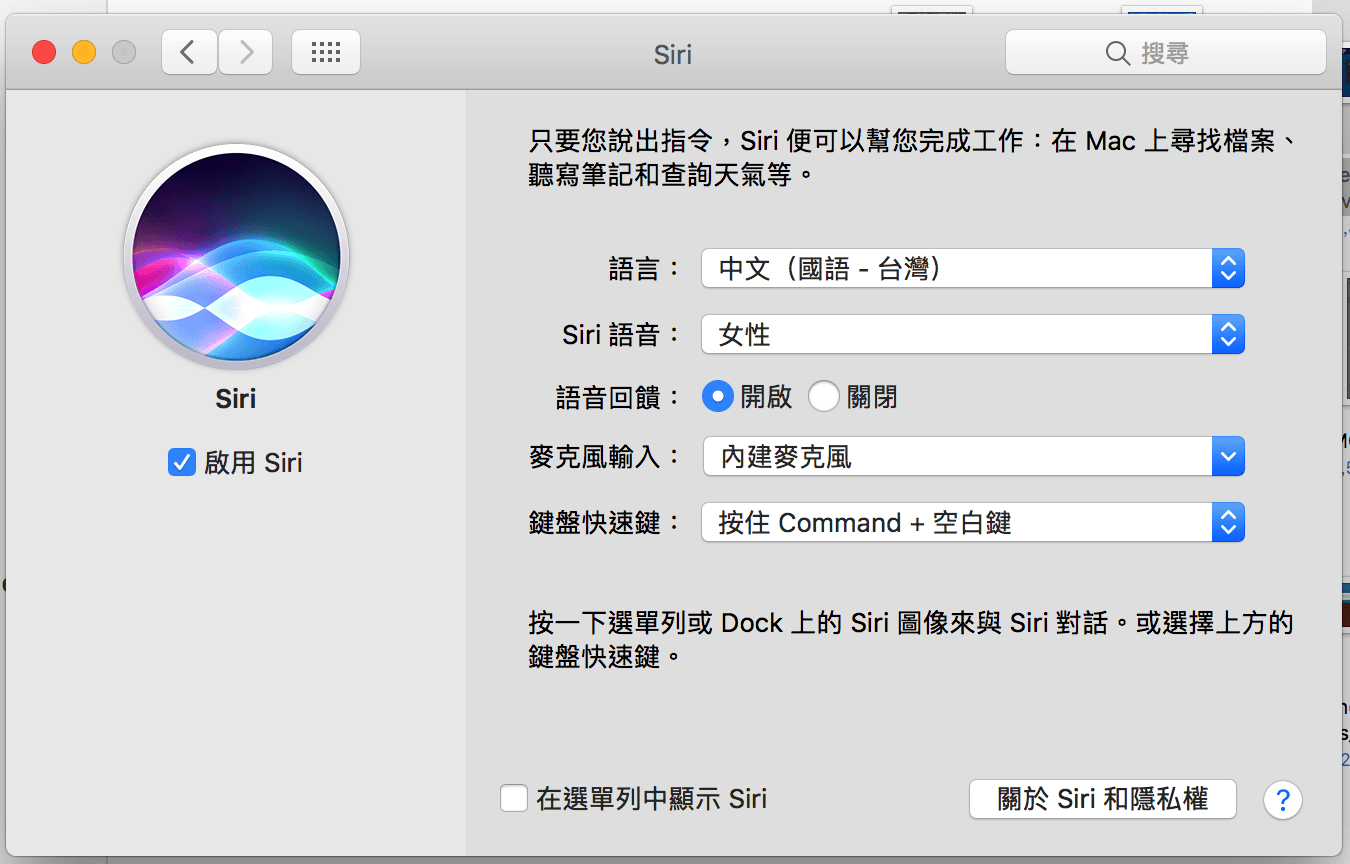 System Preferences: “Siri”.
After disabling Siri, remember to remove the leftover Siri icon from the Dock to reclaim precious screen real estate.
Additionally, as mentioned earlier, this update brought new capabilities to iCloud Drive backups. However, in the rush of onboarding dialogs right after the update, I inadvertently turned on iCloud backup for the “Desktop” and “Documents” folders.
 Apple iCloud
Automating backups for critical data is generally great, but desktop files are typically raw “draft materials”—unprocessed writing snippets or rough image assets that have little archival value yet consume enormous file sizes. As soon as automatic syncing kicked in, my iCloud storage space evaporated instantly. Apple then “helpfully” prompted me with options to purchase more cloud storage (syncing the Desktop by default almost feels like a clever monetization scheme).
As shown in the image below, iCloud injects a dedicated hierarchy into the Finder sidebar containing “Desktop” and “Documents” for convenient access (the small progress circle denotes cloud sync status).
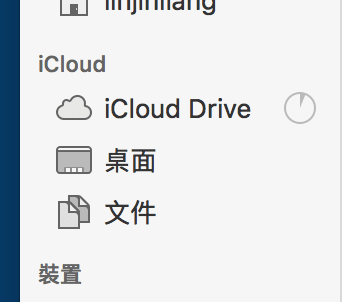 Finder sidebar displays dedicated iCloud folder hierarchy under Favorites.
However, this makes file organization more cumbersome. Because Desktop and Documents are frequently modified working directories, moving files locally once synced to the cloud triggers extra permission confirmation prompts (as shown below when moving desktop files to an external hard drive).
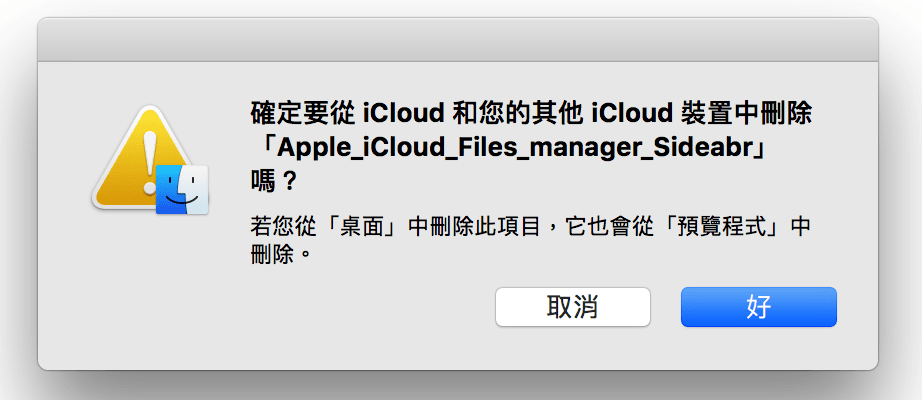 Confirmation prompt for file management.
To revert this accidentally enabled feature, head back to “System Preferences”, open the “iCloud” control panel, and you will see the iCloud backup settings shown below.
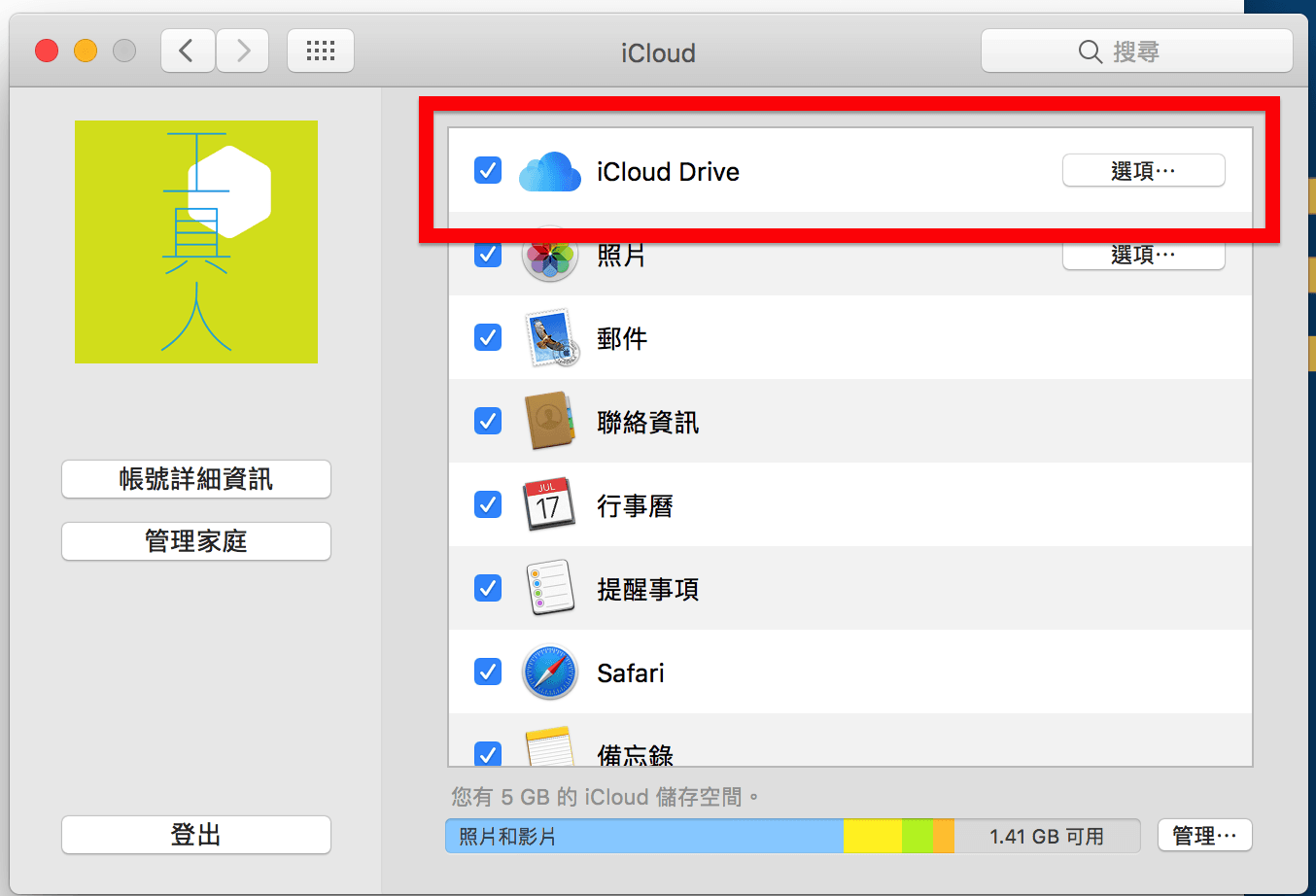 iCloud Drive settings options.
Since we want to turn off automatic storage for Desktop and Documents, click the “Options” button next to “iCloud Drive”.
In the iCloud Drive options sheet, uncheck (disable) the “Desktop & Documents Folders” option.
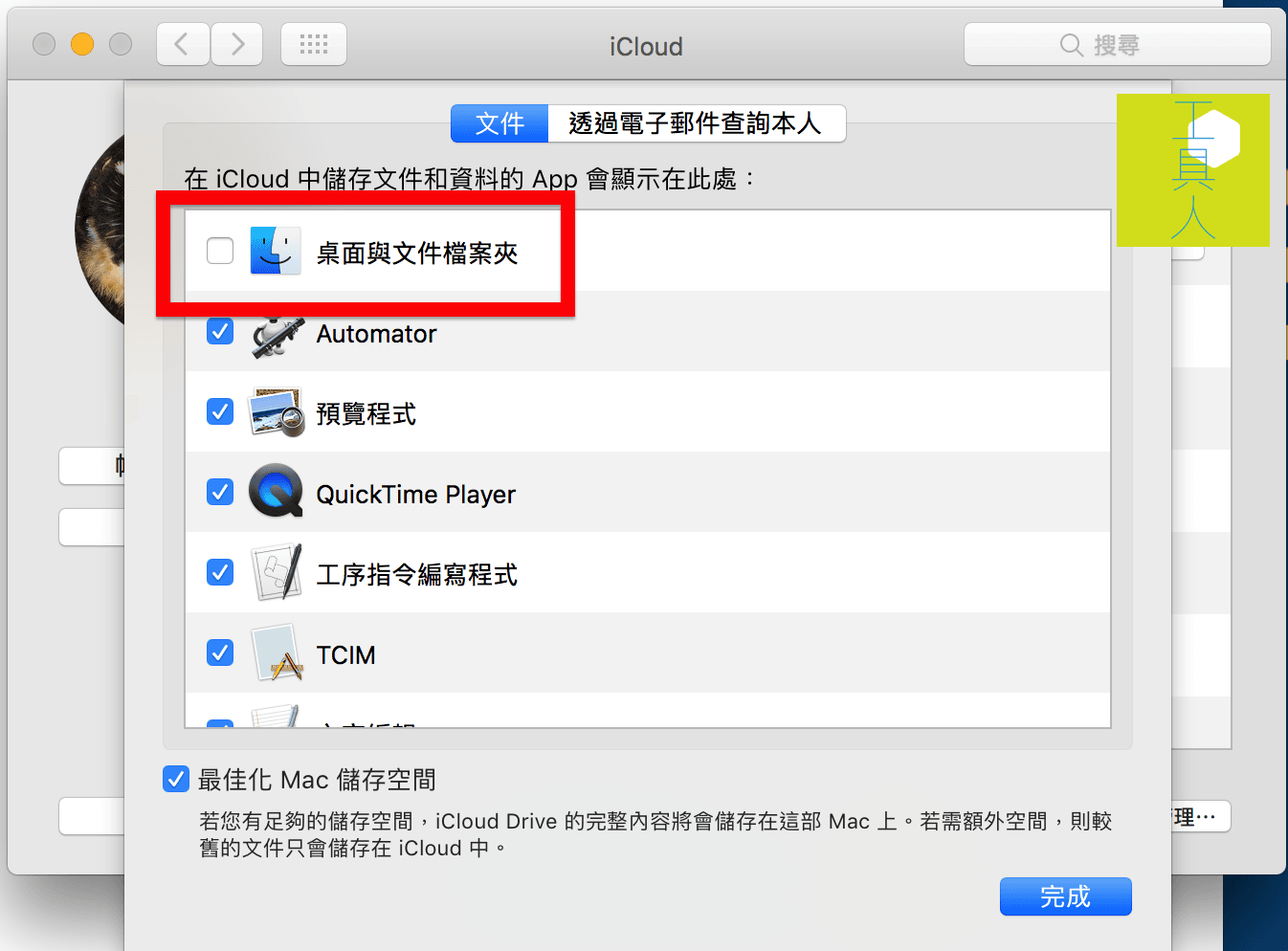 Disabling Desktop and Documents folder backups in iCloud Drive Options.
A critical heads-up: when turning off iCloud Desktop & Documents sync, your synced folders do not automatically restore back to their original local state. As clearly warned in the dialog below, the documents remain stored within iCloud Drive.
 Desktop and Documents folders remain stored in iCloud Drive.
Once Desktop & Documents syncing is turned off, the files reside inside the iCloud Drive folder (shown below), and your local Desktop and Documents folders appear empty.
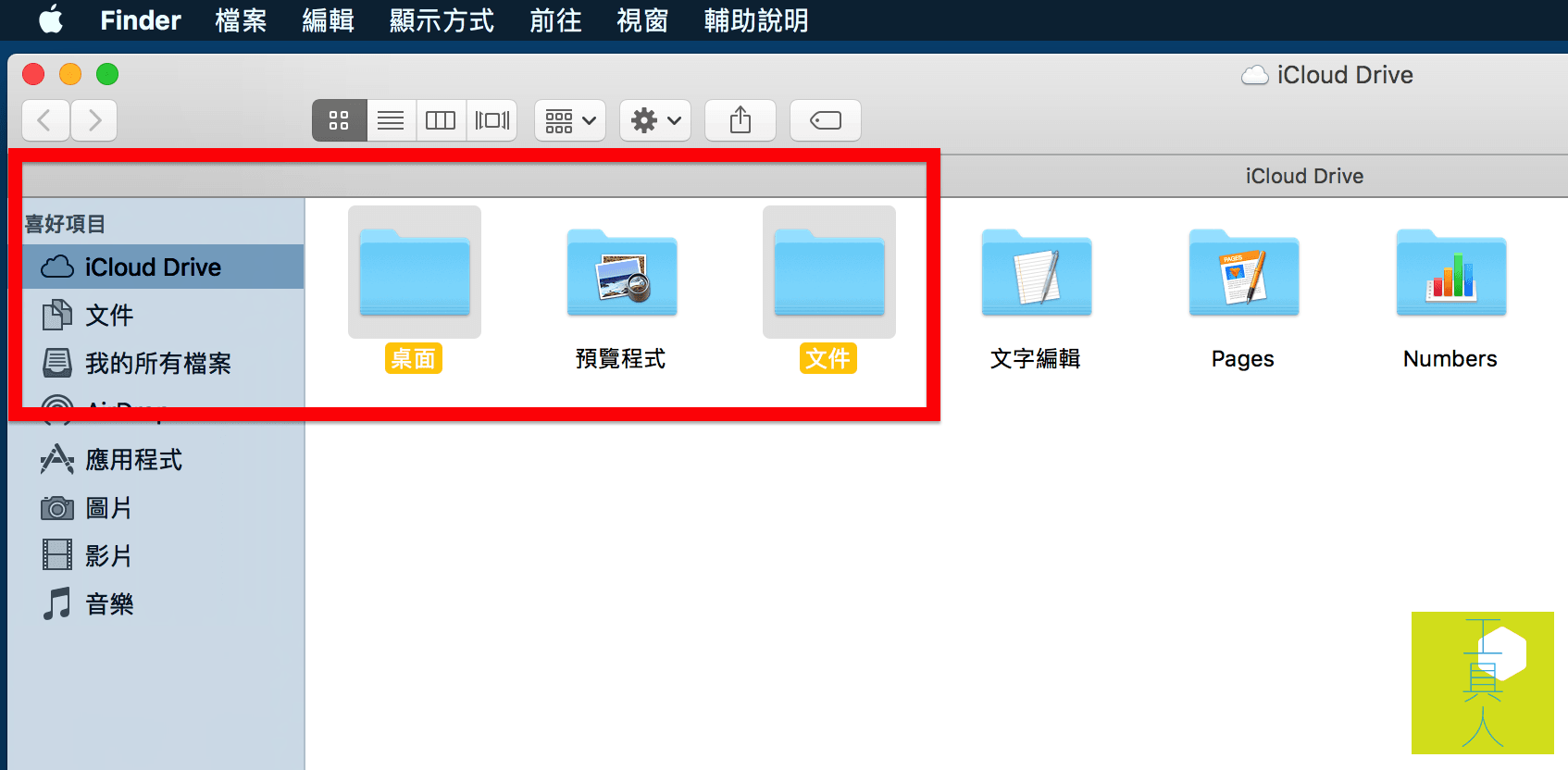 iCloud Drive folder contents.
The fix is straightforward: manually copy or move the files from the iCloud Drive Desktop and Documents folders back to your local directories (e.g., your local Desktop).
Furthermore, as seen above, once Desktop & Documents sync is disabled, the default Desktop and Documents shortcuts vanish from the Finder sidebar, creating an annoying navigation inconvenience.
To resolve this, simply drag your local Desktop and Documents folders back into the Finder sidebar Favorites list to restore them as pinned quick-access links.
Support Independent Perspectives & In-Depth Insights
Every thoughtful analysis and candid critique comes from our dedication to truth and quality. We choose not to follow sensational algorithms or clickbait headlines.
Sustaining independent research requires reader support. Make a one-time or monthly contribution, securely processed by Google.
Payments secured by Google · Manage or cancel anytime in your Google Account




Comments